vCard Garden · Save Contact QR Code

Save Contact QR Code — Scan to Save Your Contact Instantly

Scan once. Name, phone, email, and company save directly to their contacts. No typing. No app. Works on every phone — powered by your digital business card.

Create Your Contact QR Code — Free
No credit card required · Up to 3 pages free · Cancel anytime
Two professionals at a networking conference — one showing a QR code on her phone while the other scans it

How to Create a Save Contact QR Code

Create a save contact QR code using a digital contact page. When someone scans it, they can tap “Save Contact” and your details are added to their phone instantly.

  • Create your contact page
  • Download your QR code
  • Share it on cards, signs, or messages
  • Anyone who scans can save your contact in one tap

Sharing contact info is more friction than it should be

You meet someone worth knowing. You want them to have your number. So you hand them a card and hope they don't lose it before Monday. Or you read your number out loud while they squint at their screen and mistype the area code. Or you both fumble with AirDrop and it doesn't work half the time.

None of that is fast. None of it is reliable. And paper cards end up in a junk drawer or a jacket pocket — not in anyone's contacts where they'd actually be useful.

There's a simpler way.
A QR code that, when scanned, opens your contact page and lets anyone save your full details in one tap. Your name, phone, email, and company go straight into their address book — no typing, no paper, no app required on their end.

How it works

Four steps. The whole thing takes about ten seconds on their end.
1
They scan your QR code
Any phone camera works. No QR code app needed. They point their camera, a link appears, they tap it.
2
Your contact page opens
Their browser opens your vCard Garden page — your photo, name, title, company, and all your contact info in one place.
3
They tap "Save Contact"
One button. Their phone downloads a .vcf file — the standard contact format every phone understands natively.
4
Your info saves instantly
The phone opens the file automatically. Your name, phone, email, and company land in their address book. No mistakes, no follow-up needed.
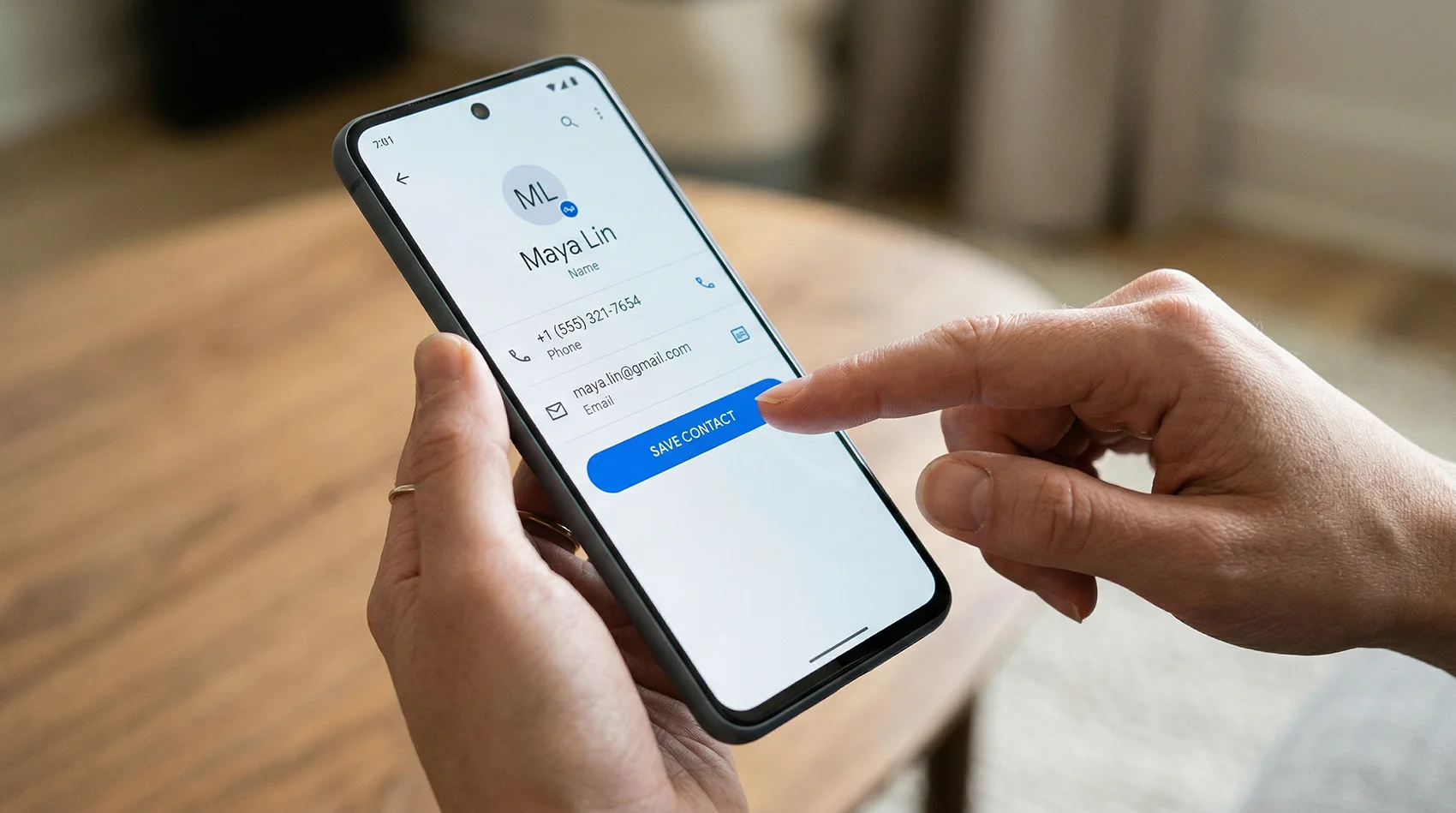
Hands holding an Android phone with a finger tapping the blue Save Contact button, showing name, phone, and email on screen

Everything saves in one tap

When someone taps Save Contact on your page, a .vcf file downloads to their phone. It opens automatically — no extra steps — and their contacts app shows a new entry with your info already filled in.

👤 Full name
First and last, exactly as you set it
📞 Phone number
Mobile, office, or both
✉️ Email address
Professional or personal
🏢 Company & title
Name and job title both save
🌐 Website
Links directly from their contacts
📋 .vcf format
Standard format. Every phone supports it.

The .vcf format (also called vCard) is the universal contact file standard. iPhone, Android, every phone opens it natively — no conversion, no compatibility issues.

Where people use their save contact QR code

Anywhere you'd normally hand out a business card — except this one actually gets saved to their phone.
🤝 Networking events and conferences
Put your QR code on a name badge or table tent. Anyone you meet scans it and saves your contact before you walk away — no card swap, no "I'll look you up later" that never happens.
🏠 Real estate open houses
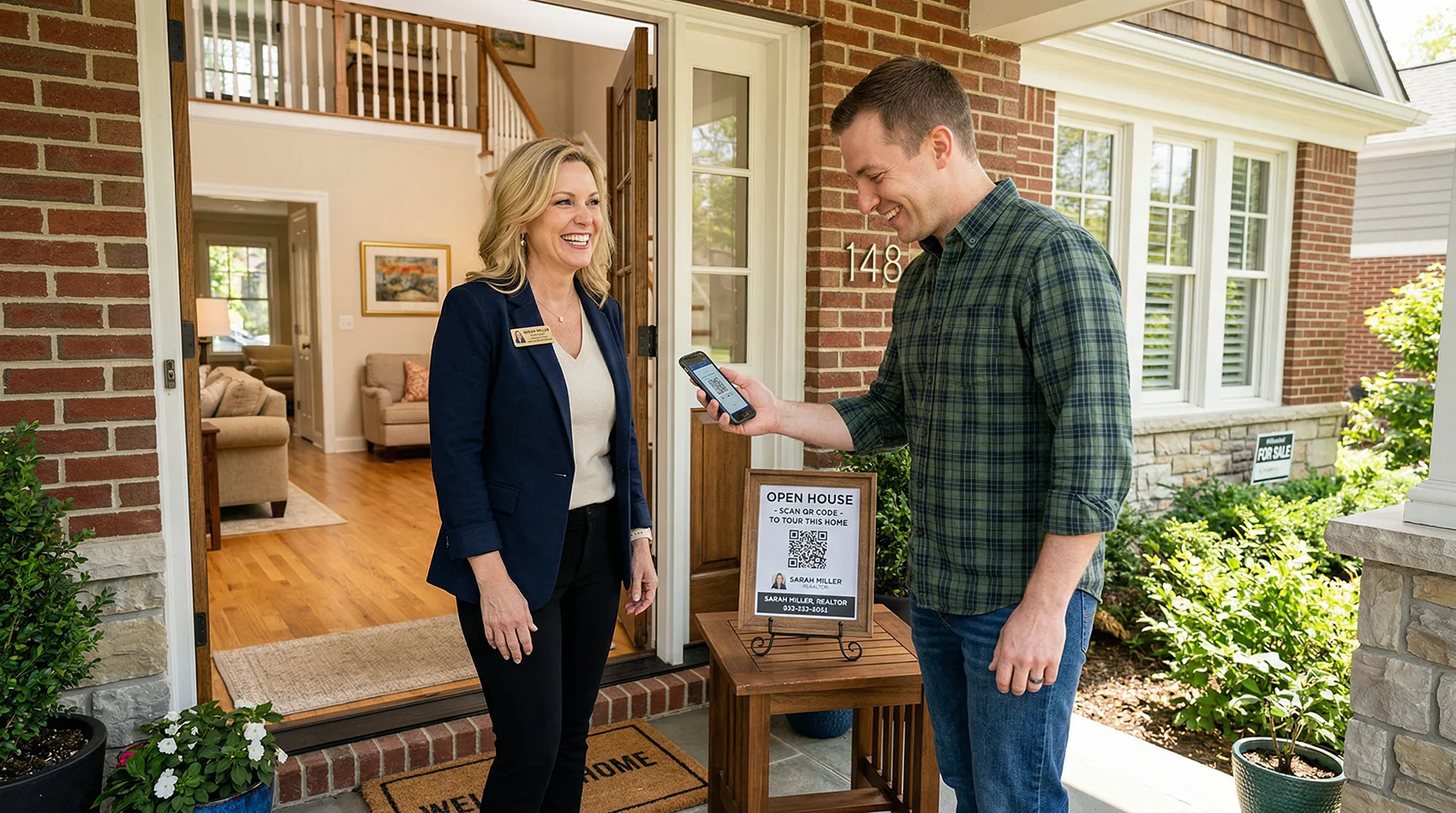
Set a sign at the door with your QR code. Visitors scan it on the way in, save your contact, and you're already in their phone before they leave the property.
🔨 Contractors and service businesses
Put your QR on estimates, yard signs, or your truck. When a homeowner wants to refer you, they share your contact from their phone instead of hunting for a card they lost weeks ago.
🎪 Trade shows and expos
Skip the badge scanner and the follow-up form. Show your QR code and they've saved your number by the time they move to the next booth.
📧 Email signatures and text messages
Share your link anywhere a physical QR code doesn't fit. Same result — one tap and your contact is saved.
Realtor at an open house front door next to a QR code sign while a visitor scans it with their phone
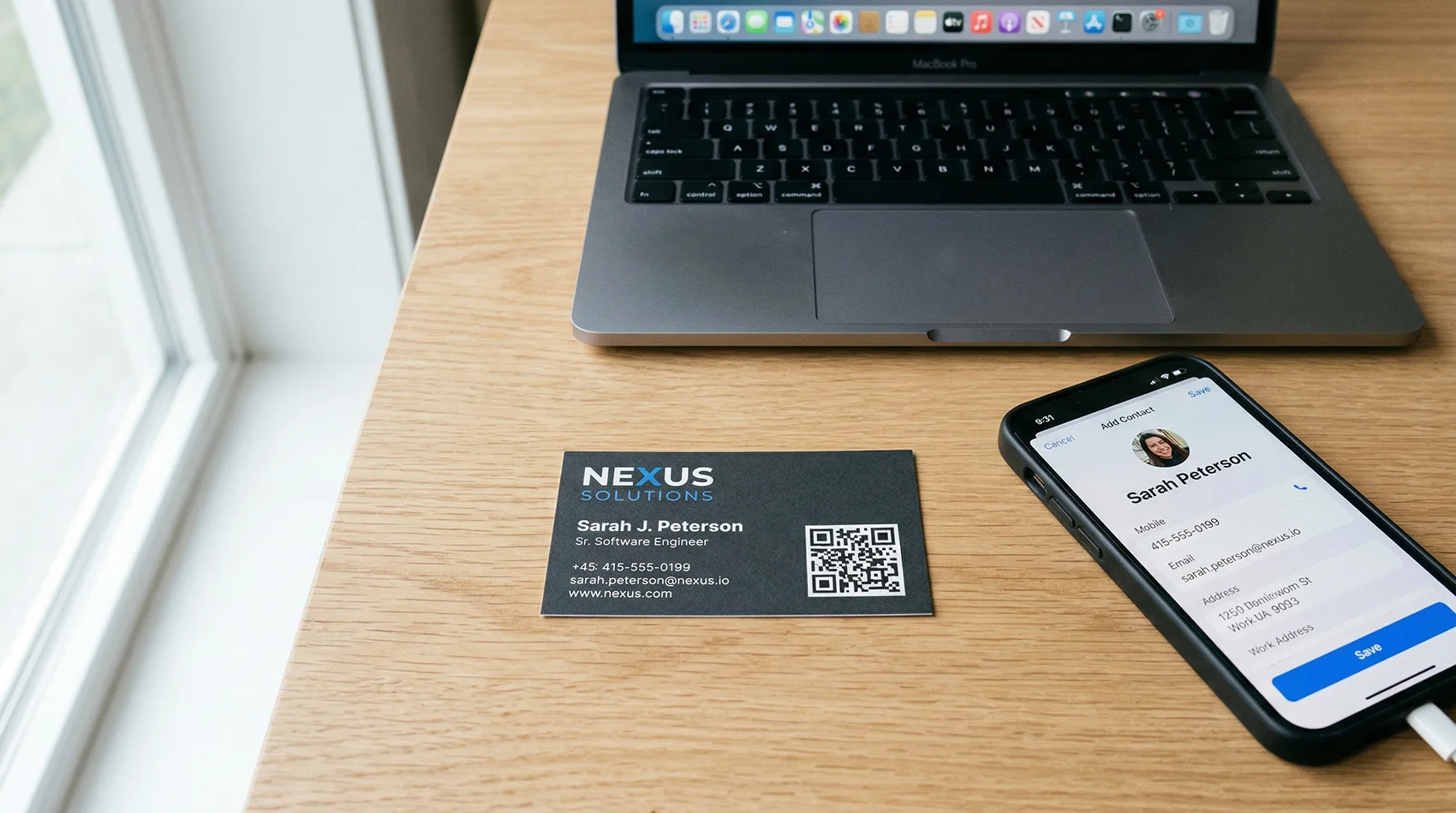
Business card with a QR code on a desk next to a phone showing an Add Contact screen with name, phone, and email filled in

Two ways to share — one contact page

Every vCard Garden page gives you both. Use whichever fits the moment.

📷 QR code — for in-person
Download your QR code as a PNG, SVG, or PDF. Print it on business cards, signs, flyers, or truck wraps. When someone points their camera at it, they land on your contact page and can save you in one tap.
🔗 Link — for text and email
Your page has a shareable URL. Drop it in a text message, an email signature, or a LinkedIn bio. Same experience — they tap the link, see your page, save your contact.

Both point to the same page. Update your info once and every QR code and link you've ever shared automatically reflects the change. Print once, update forever.

No app required — on either end

For you
Create your page on vcardgarden.com and download your QR code. No app to install, no hardware to buy, nothing to carry.
For them
They scan with their built-in camera. Your page opens in their browser. They tap Save Contact. Nothing to download, nothing to install, nothing to figure out.
Works on iPhone · Android · Any phone with a browser

Update your info anytime — QR code stays the same

Your QR code points to your page, not directly to your contact details. So when you change your number, switch companies, or update your email, you log in and make the change once.

Every QR code you've ever printed — on business cards, signs, email signatures — still works and now shows the updated info. No reprinting, no stale contact details floating around.

$0
Reprinting cost when you change info
Times you can update your page

Set up in about 10 minutes

No coding. No design work. Fill out a form and you're live.

Step 1
Start your free trial
Sign up at vcardgarden.com — no credit card required. Pick a template that fits your industry.
Step 2
Add your contact info
Name, title, company, phone, email, and website. Upload your headshot and logo if you have one.
Step 3
Publish your page
Your contact page goes live at vcardgarden.com/your-name. Share the link or move on to step 4.
Step 4
Download your QR code
Download as PNG, SVG, or PDF. Print it anywhere — business cards, signs, flyers, email signatures. Ready to scan immediately.

Frequently asked questions

Does this work on iPhone?
Yes. The iPhone's built-in camera app scans QR codes directly — no separate app needed. Your contact page opens in Safari, they tap Save Contact, and the .vcf file adds you to their contacts automatically.
Do they need to download an app?
No. Your page opens in any browser on any phone. The only thing they tap is the Save Contact button — there's nothing to install or sign up for on their end.
What file format does it use?
The .vcf format, also called vCard. It's the universal standard for contact files — every phone and contacts app supports it natively. iPhone opens it in Contacts, Android opens it in its contacts app, no conversion needed.
What information gets saved to their phone?
Name, phone number, email address, company name, job title, and website — everything you'd want in a contacts entry, exactly as you entered it on your page.
Can I update my info after I've already printed my QR code?
Yes — that's one of the main advantages. Your QR code points to your page URL, not to your contact details directly. Update your page and every printed QR code you've ever made automatically reflects the change. No reprinting.
Is there a free trial?
Yes — 14 days free, up to 3 pages, no credit card required. You can have your contact QR code live and printed before you spend anything.

Related pages

Create your contact QR code in 10 minutes

Set up your page, download your QR code, and start sharing it today. Anyone who scans it saves your contact in one tap — no app, no friction, no lost cards.

Create Your Contact QR Code — Free →
No credit card required · Cancel anytime