Can You Text a Contact Card? (iPhone & Android)
April 15, 2026 • Updated 2 months, 4 weeks ago

Can You Text a Contact Card?
Short answer: Yes — you can text a contact card (vCard), but it often fails or creates extra steps for the other person. There’s a faster way to share your contact that works on any phone.
With vCard Garden, you can send a simple link or QR code. The other person opens your page and taps “Save Contact” — no file downloads, no confusion.
This works on both iPhone and Android — but the experience isn’t the same, and that’s where most people run into problems.
How to Text a Contact Card on iPhone
On an iPhone, you can share a contact via iMessage as a .vcf file. Here’s how:
- Open the Contacts app and find the contact you want to share
- Scroll down and tap Share Contact
- Choose Message from the share sheet
- Select the recipient and send
The contact is sent as a .vcf attachment. If the recipient is also on iPhone and iMessage, it usually works fine. If they’re on Android, it gets more complicated.
How to Text a Contact Card on Android
On Android, the steps vary slightly by manufacturer, but the general process is:
- Open the Contacts app and tap the contact
- Tap the three-dot menu and select Share
- Choose to share as a .vcf file via Messages
- Select the recipient and send
Some Android devices send the contact inline in the message thread. Others attach it as a file. The experience isn’t consistent between phones — which is where most issues come from.
Why Texted Contact Cards Often Don’t Work
Most people don’t realize this — when you text a contact card, the other person still has to download it and manually save it. It’s not instant.
Here’s what actually happens on the receiving end:
- They get a .vcf file attachment they may not recognize
- They have to tap it, then confirm they want to add it to their contacts
- On some Android phones, .vcf files sent from iPhone don’t open correctly
- On some iPhones, .vcf files sent from Android show up as unreadable attachments
- If they’re using a messaging app like WhatsApp or Signal, the file handling is different again
Cross-platform contact sharing — iPhone to Android or vice versa — is where .vcf texting fails most often. The file format is technically the same, but how each phone handles it isn’t.
The other problem: once you’ve texted someone a contact card, that information is frozen in time. If your number changes next month, the contact they saved is wrong. There’s no way to update it.
What Works Better Than Sending a Contact Card
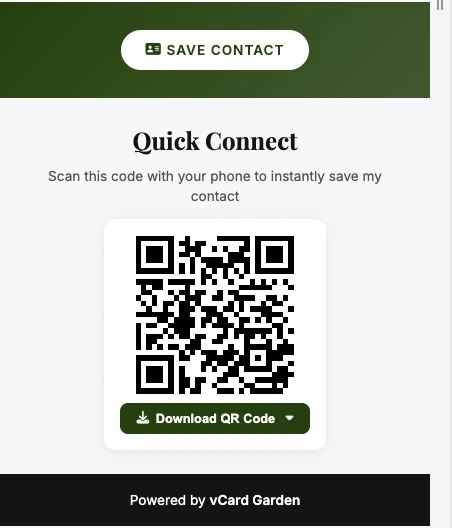
Instead of texting a contact card file, you can send a simple link to your digital business card. The other person taps the link, your page opens in their browser, and they save your contact with one tap — no file, no confusion, works on every phone.
This is what vCard Garden does. You create a page with your contact info, photo, and a Save Contact button. You get a shareable link and a QR code. Send either one and the person saves you instantly.
The difference from texting a contact card:
- No file attachment — just a link that opens in any browser
- Works the same on iPhone and Android
- If you update your info, the link still works and shows your latest details
- You can share the same link everywhere — text, email, Instagram bio, email signature
You can also use the QR code in person. Someone scans it, your page opens, they save your contact. No texting required at all.
Create your digital business card in under 5 minutes and share it with a link or QR code — it works on every phone and saves directly to contacts.