How to Add a Business Card to Apple Wallet (2026 Guide)
July 16, 2026 • Updated 1 month, 1 week ago

How to Add a Business Card to Apple Wallet (Step-by-Step)
Yes, you can add a business card to Apple Wallet — but not directly. Apple Wallet only accepts .pkpass files, so you need a pass generator service to convert your contact info into a Wallet pass. Here are the exact steps, what the result looks like, and a free alternative that also works on Android.
How to Add a Business Card to Apple Wallet in 5 Steps
- Choose a Wallet pass generator. Search "create Apple Wallet business card" — several online services generate .pkpass files.
- Enter your contact details. Name, phone number, email, company, and title.
- Generate the .pkpass file. The service packages your info into Apple's pass format with a QR code.
- Open the file on your iPhone. Download it in Safari or open it from Mail or Messages.
- Tap "Add" when the Wallet preview appears. Your business card pass now lives in Apple Wallet.
When someone wants your info, open Wallet, show the pass, and they scan the QR code on it with their camera.
That's the whole process. Now — before you set one up, here's what nobody tells you about how these passes actually work in real life.
What Is a .pkpass File?
A .pkpass file is Apple's proprietary format for Wallet passes — the same format used for airline boarding passes, concert tickets, and loyalty cards. It's a small package that contains your info (name, phone, email) plus a barcode or QR code, wrapped in a rigid card layout that Apple controls.
Think of it like a digital version of the punch card you get at a sandwich shop. It holds info and sits in Wallet, but you get almost no control over how it looks or what it includes.
Can You Add a vCard (.vcf) to Apple Wallet?
No. Apple Wallet does not accept .vcf files. If you open a vCard on your iPhone, it goes to your Contacts app, not Wallet. The only way to get contact info into Wallet is converting it to a .pkpass file with a third-party service — there's no built-in way to do it.
(If what you actually need is a shareable .vcf file, our free vCard maker creates one in about a minute.)
What Your Apple Wallet Business Card Actually Looks Like
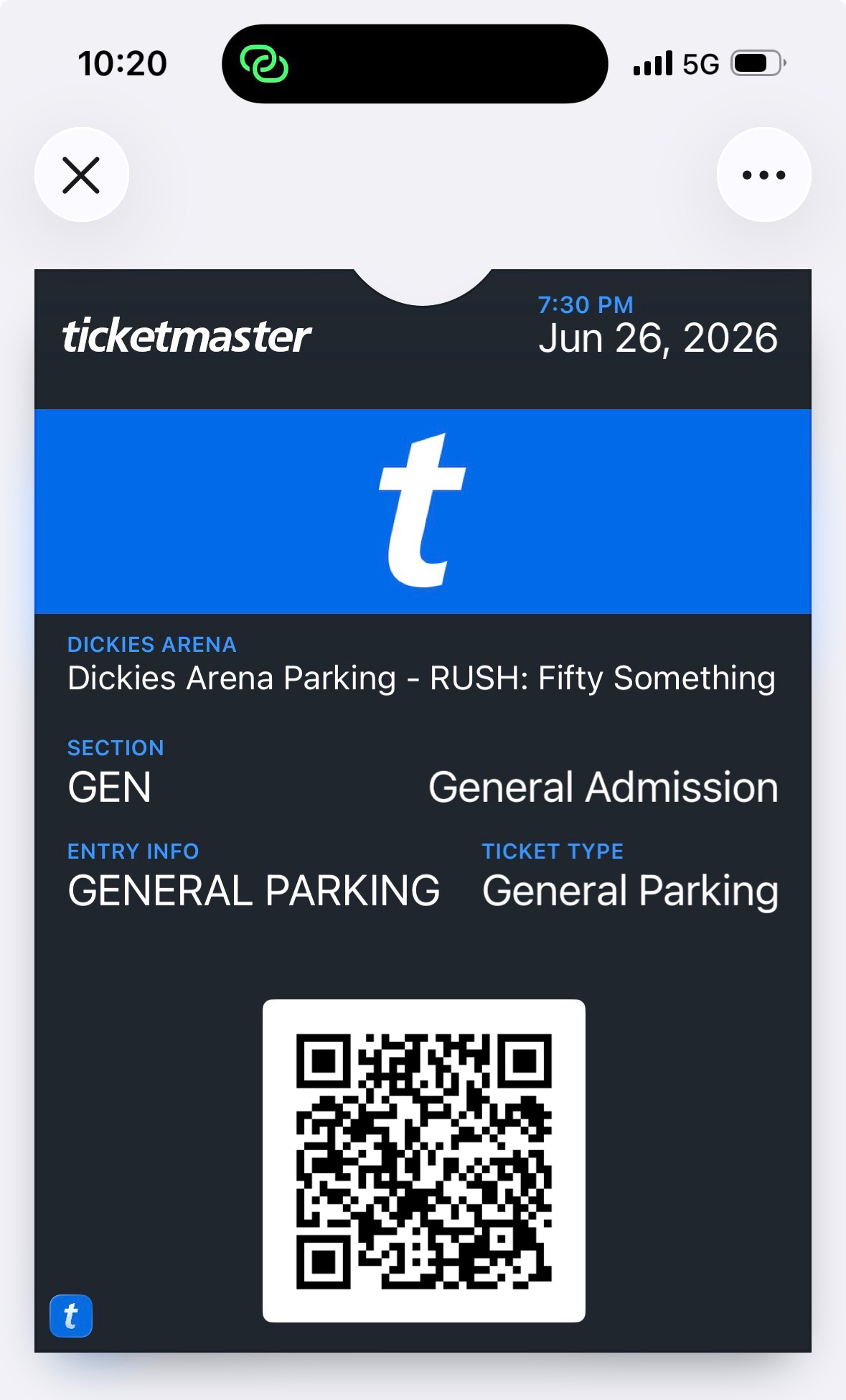
Here's the thing nobody tells you until you've already set it up — Apple Wallet passes all look basically the same. A dark or colored header, some text fields, and a QR code at the bottom.
There's no room for your logo, your brand colors, your photo, or a bio. It looks like a parking pass, because that's exactly what the format was designed for. You get a name, a couple lines of text, and a barcode.
Compare that to what a digital business card looks like — your branding, your photo, your full contact info, social links, and a one-tap save button.
4 Limitations of Apple Wallet Business Cards
Apple Wallet sounds like a smart idea until you actually use it at a networking event, an open house, or a job site. Here's what goes wrong:
1. Your info is frozen. Change your phone number? New email? Different company? You have to delete the old pass and generate a brand new one. There's no way to update a Wallet pass after it's created.
2. It only works on iPhone. If the person you're talking to has an Android phone — and about half of Americans do — your Wallet pass is useless to them. They can't open it or save it.
3. People still have to scan a QR code. The pass doesn't beam your info to anyone. They open their camera, scan the code, and manually save your info — the same number of steps as showing a QR code from your Photos app.
4. No one-tap save. Scanning a Wallet pass QR code usually triggers a raw vCard download or a bare URL. There's no clean landing page with a "Save Contact" button. It's clunky.
Apple Wallet vs NFC Card vs Digital Business Card
| Apple Wallet Pass | NFC Card | Digital Business Card | |
|---|---|---|---|
| Works on Android | No | Most phones | Yes — every phone |
| Updates instantly | No — regenerate the pass | Yes (if linked to a page) | Yes |
| Your branding & photo | No | On the linked page | Yes |
| Cost | Varies by service | $15–$30+ per card | Free to start |
| One-tap contact save | No | Depends on service | Yes |
For most people — especially contractors, realtors, and small business owners who don't want to deal with tech — the digital business card with a QR code wins, and it's not close. (Full breakdown: QR Code vs NFC for Sharing Contact Info.)
The Better Option: A Digital Business Card

Instead of wrestling with .pkpass files, here's what people actually do when they need to share contact info quickly and reliably: they create a digital business card — a simple web page with their name, phone, email, photo, and a QR code. It works on every phone, every platform, and takes about five minutes to set up.
No app to install. No file format to figure out. You fill out a form, and you get a page.
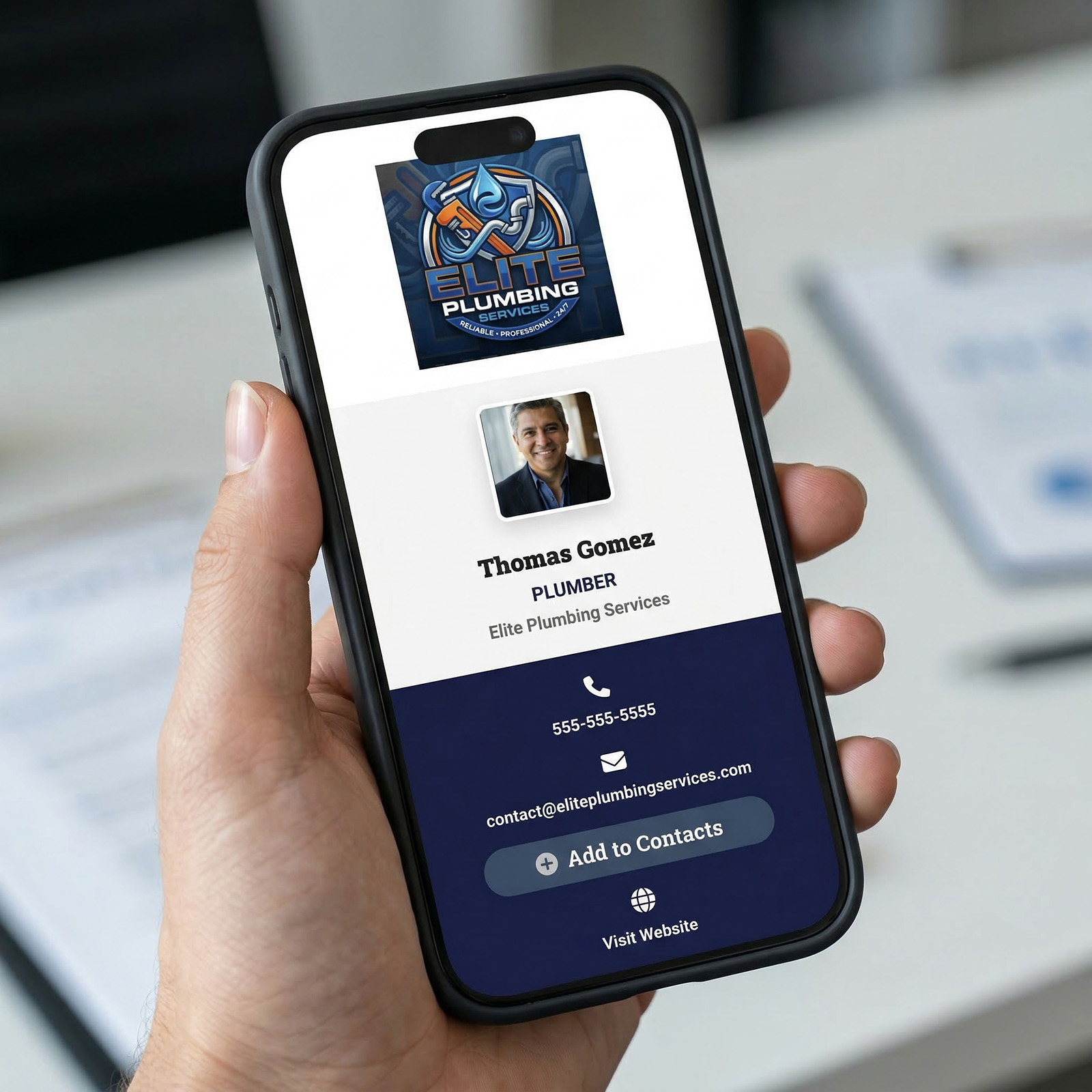
This is a real digital business card made with vCard Garden. When your info changes, you update it once — everyone who has your link or scans your printed QR code sees the new info automatically. No regenerating passes, no resending anything.
How to Keep Your Digital Card One Tap Away on iPhone
You don't need Apple Wallet to have your business card ready instantly. Two ways:
Save Your QR Code to Photos
- Create your digital business card
- Download your QR code image from your card page
- Save it to your Photos app
- Add it to a "Favorites" album for quick access
Pro tip: On iOS 16 and later, add a Photos widget to your Lock Screen showing your QR code — you can share your contact info without even unlocking your phone.
Add a Home Screen Shortcut
- Open Safari and go to your digital business card URL
- Tap the Share button
- Select "Add to Home Screen"
- Name it "My Card" and tap "Add"
Now you have a one-tap icon that opens your full card. Show it, let them scan, or text them the link.
Frequently Asked Questions
Can you add a business card to Apple Wallet?
Yes, but only as a .pkpass file created by a third-party pass generator. Apple Wallet has no built-in business card feature and doesn't accept vCard (.vcf) files.
Is there a free way to make an Apple Wallet business card?
Some pass generators offer free tiers with limited customization. But a digital business card gives you more — your photo, branding, QR Code, VCF Download and one-tap save — and works on Android too, of course since this requires hosting, there is a fee.
Can Android users see my Apple Wallet business card?
No. Apple Wallet passes only open on iPhone. Android users can scan the QR code printed on your pass, but they can't receive or store the pass itself.
Can you update an Apple Wallet business card after creating it?
Not directly. Once a .pkpass is generated, the info on it is fixed. To change your phone number or email, you have to create a new pass and delete the old one.
What's the difference between a vCard and an Apple Wallet pass?
A vCard (.vcf) is a contact file that saves directly into someone's Contacts app. An Apple Wallet pass (.pkpass) is a display card that sits in Wallet — it shows your info but doesn't save it to contacts without an extra scan step.
Get Your Digital Business Card in 5 Minutes
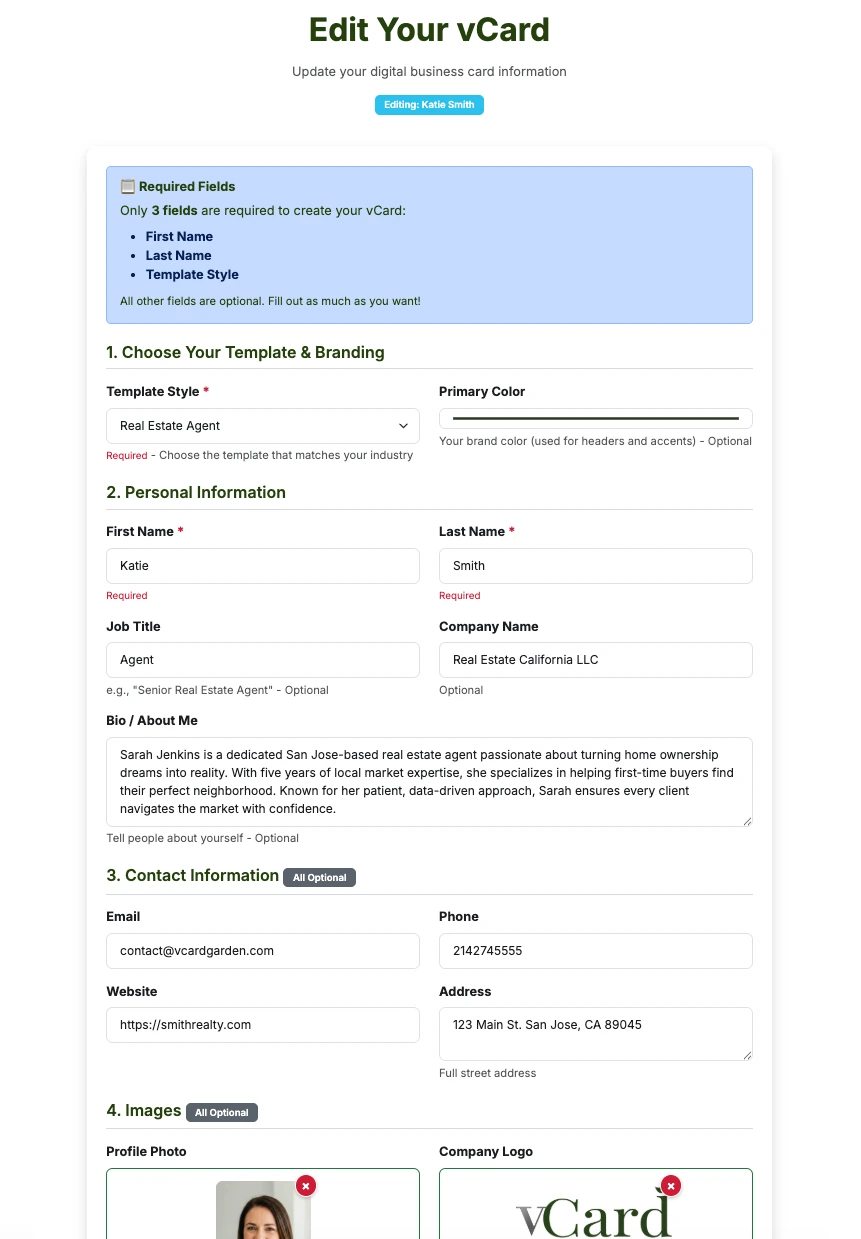
You fill this out
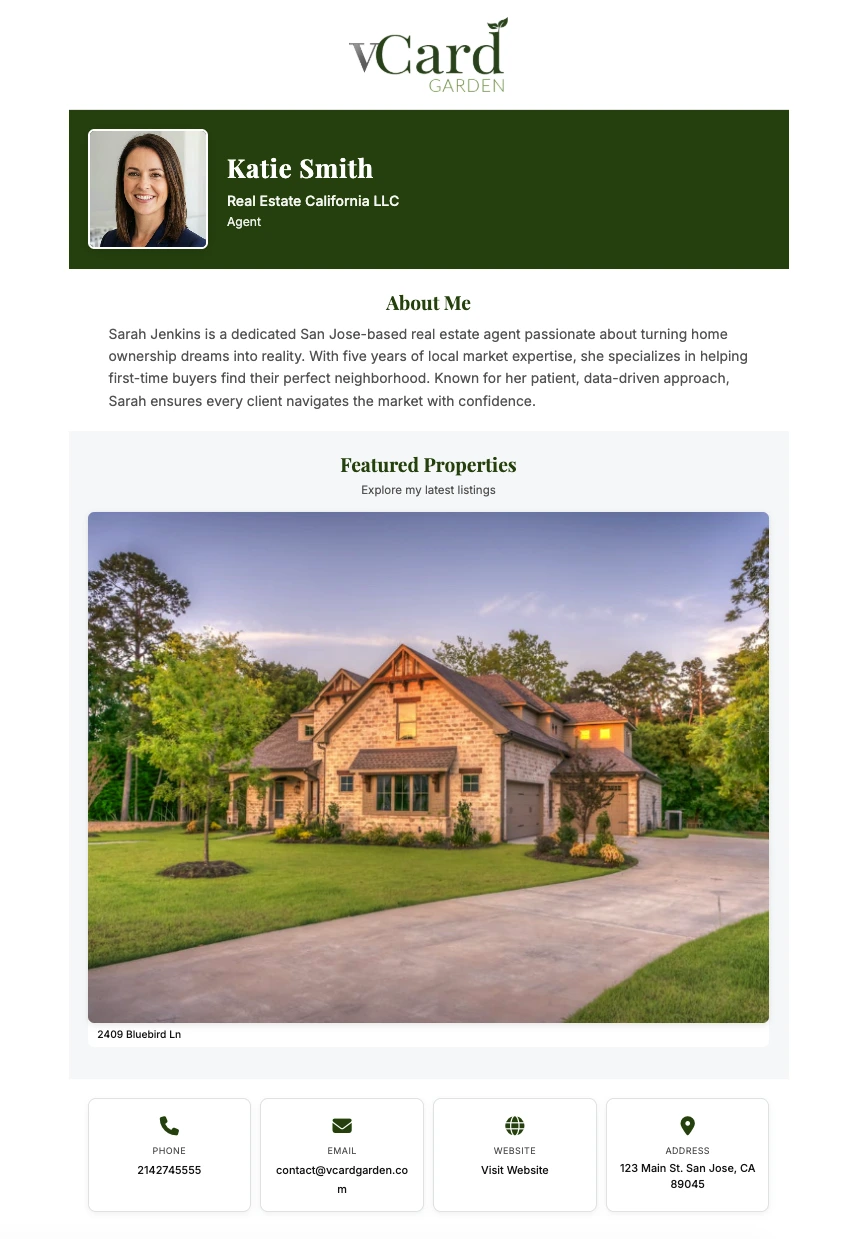
You get this page
Only 3 fields are required — your first name, last name, and a template style. Everything else is optional. Your card includes a QR code, a shareable link, a "Save Contact" button, and works on every phone.