How to Share Contact Info Without Saving a Number (Fast & Easy)
July 15, 2026 • Updated 2 months, 4 weeks ago
How to Share Contact Info Without Saving a Number
Short answer: You can share contact info without saving a number by sending a link, QR code, or contact card — but some methods are faster and work better across phones.
With vCard Garden, you can send a simple link or show a QR code. The other person opens your page and taps “Save Contact” — no typing, no saving numbers first.
This works on both iPhone and Android — but not all methods are equal, and some create extra steps or fail completely.
Why You Might Not Want to Save a Number First
Most people assume you have to exchange numbers before you can share contact info. You don’t — and in a lot of situations, it’s actually better not to.
A few common scenarios:
- Networking events. You meet a dozen people in two hours. You want to give everyone your info without asking for their number or filling up your contacts with people you might not speak to again.
- Quick introductions. Someone asks for your card on the spot. You want to hand them something useful, not start a number exchange.
- Service businesses. A plumber, contractor, or realtor wants the customer to have their info immediately after the job — without a back-and-forth.
- Keeping your contacts clean. Saving every number you ever receive gets messy fast. Sharing your info without requiring a save on your end keeps things simple.
Most people don’t realize this — you don’t need to save someone’s number first to share your contact info.
Best Ways to Share Contact Info Without Saving a Number
Texting a Contact Card (.vcf)
Both iPhone and Android let you share your contact as a .vcf file via text message. On iPhone, open Contacts, tap your name, scroll down and tap Share Contact, then choose Messages. On Android, open Contacts, tap the three-dot menu, and select Share.
The other person receives a file attachment. When they tap it, their phone prompts them to save the contact. You never had to save their number to do this.
Sending a Link
If you have a digital business card, you can text or email the link to anyone without saving their number first. They tap it, your page opens, and they save your contact. Works the same on iPhone and Android, across any messaging app.
Using a QR Code
Show your QR code on your phone screen. The other person scans it with their camera. Your contact page opens and they tap Save Contact. No numbers exchanged at all — completely contactless.
This is the cleanest method for in-person situations. You pull up your QR code, they scan, done.
NFC
Some digital business card services offer NFC — you tap your card or phone to theirs and the info transfers. It requires either a physical NFC card or an NFC-enabled device, and it doesn’t work with all phone cases. It’s fast when it works, but it’s the most hardware-dependent option.
Why Some Methods Don’t Work Well
The .vcf method sounds simple, but it breaks regularly in real life:
- Android phones receiving .vcf files sent via iMessage or SMS sometimes can’t open them — this is a texting compatibility issue, not a problem with .vcf files themselves
- Messaging apps like WhatsApp handle file attachments differently than native SMS
- The person has to take two or three steps — tap the file, confirm the save, check the contact was added correctly
- If you update your info later, their saved contact is still the old version
Note: This only applies to .vcf files sent as text message attachments. When someone taps “Save Contact” on a vCard Garden page, it downloads a clean .vcf directly in their browser — which works correctly on both iPhone and Android.
NFC has its own friction — you need to be physically next to the person, both phones need to cooperate, and if you lose your NFC card you lose the connection point entirely.
Links and QR codes avoid most of this. The only thing that can go wrong is the link breaking — which doesn’t happen if the page is live and maintained.
The Easiest Way to Share Contact Info Instantly
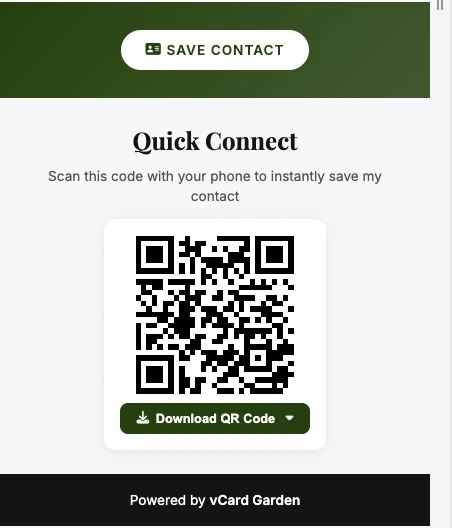
The simplest setup: create a digital business card with your name, photo, contact info, and a Save Contact button. You get a link and a QR code. Share either one — no number exchange, no file attachment, no friction.
The person taps your link or scans your QR code. They see your full info. They tap Save Contact. Your name, number, email, and company go straight into their phone. Done.
And if you change your number or email later, you update your card once and everyone who has your link sees the new info automatically. Nothing breaks, nothing needs to be resent.
Create your digital business card in under 5 minutes and share your contact instantly with a link or QR code — no saving numbers, no extra steps.