How to Open a .VCF File on iPhone & Android (Quick Guide)
July 17, 2026 • Updated 2 months, 4 weeks ago

You just received a .vcf attachment via email or text, but tapping it does nothing. Or maybe you downloaded one from a website and your phone just stares at you. Don't panic — you don't need special software to open it. A .vcf file is just a digital contact card, and your phone already knows how to handle it.
Here's exactly how to open and import vCard contacts on iPhone and Android, step by step — plus what to do when it doesn't work.
What is a .VCF File?
A .vcf file (Virtual Contact File) is the universal standard for sharing contact information digitally. It packages a person's name, phone number, email, address, website, and sometimes a photo into a single file that any phone, tablet, or computer can read.
When you open a .vcf file, your device recognizes it as a contact and offers to save it directly to your address book. It's the same format used behind the scenes when you tap "Share Contact" on your phone. For a deeper dive into how these files work, check out our complete guide to vCard formats.
How to Open a vCard File on iPhone
iPhones handle .vcf files natively — no app downloads needed. Here's how to import a vCard to iPhone depending on where the file came from.
From Email (Mail App or Gmail)
- Open the email with the .vcf attachment
- Tap the attachment to preview it
- Tap "Create New Contact" or "Add to Existing Contact"
- Tap "Done"
The contact saves immediately and syncs to iCloud if you have it enabled.
From a Text Message or iMessage
- Tap the .vcf file in the message thread
- Your iPhone shows a preview of the contact details
- Tap "Create New Contact"
- Tap "Done"
From AirDrop
- Accept the AirDrop transfer
- The contact preview opens automatically
- Tap "Create New Contact"
- Tap "Done"
From the Files App
If someone sent you a .vcf file through a cloud link, or you downloaded it and it landed in your Files app:
- Open the Files app
- Navigate to the .vcf file
- Tap the file
- Tap "Create New Contact"
- Tap "Done"
From a Safari Download
If you tapped a "Save Contact" button on a website and the .vcf file downloaded:
- Tap the download icon in Safari (blue arrow, top right)
- Tap the .vcf file
- Tap "Create New Contact"
- Tap "Done"
How to Open a vCard File on Android
Android handles .vcf files through the Google Contacts app. Here's how to import a vCard to Android from different sources.
From Email (Gmail)
- Open the email with the .vcf attachment
- Tap the attachment
- Select "Contacts" when asked which app to use
- Choose which account to save to (Google, Samsung, device)
- Tap "Save"
From a Text Message
- Tap the .vcf file in the message
- Select "Contacts" or "Google Contacts"
- Tap "Save"
From Downloads
If you downloaded a .vcf file from a website or received it through a file-sharing app:
- Open your Files or Downloads app
- Find and tap the .vcf file
- Select "Contacts" when prompted
- Choose which account to save to
- Tap "Save"
Manual Import via Google Contacts
If tapping the .vcf file doesn't trigger the import automatically:
- Open the Google Contacts app
- Tap "Fix & manage" at the bottom
- Tap "Import from file"
- Select your Google account
- Navigate to and select the .vcf file
This method works reliably on every Android version and is the go-to fix when the automatic import fails.
Troubleshooting: When .VCF Files Won't Open
VCF File Won't Open on iPhone
Check the file extension. Make sure the file actually ends in .vcf. Some email apps rename attachments or strip the extension, which prevents iOS from recognizing it as a contact file.
Try opening through Contacts. If tapping the file does nothing, try sharing it to the Contacts app: long-press the file in the Files app, tap Share, and select Contacts.
VCF File Won't Open on Android
Use the manual import method. If tapping the file opens a text editor or shows raw code instead of a contact preview, use the Google Contacts import method described above.
Try a different file manager. Some third-party file managers don't associate .vcf files with the Contacts app. Switch to Google's Files app or Samsung's My Files.
Contact Information is Missing After Import
Older vCard version. Some older vCard 2.1 files don't support all fields. If the sender used an outdated tool, certain details like websites or job titles may not carry over.
Encoding issues. Special characters in names or addresses — accents, non-Latin scripts, emoji — can sometimes cause fields to display incorrectly or drop entirely.
Contact Photo Not Showing
Not all import methods preserve embedded photos. The photo data often gets stripped during email attachment processing. If the contact photo matters, ask the sender to share their digital business card link instead — photos always display correctly on the web page and save properly from there.
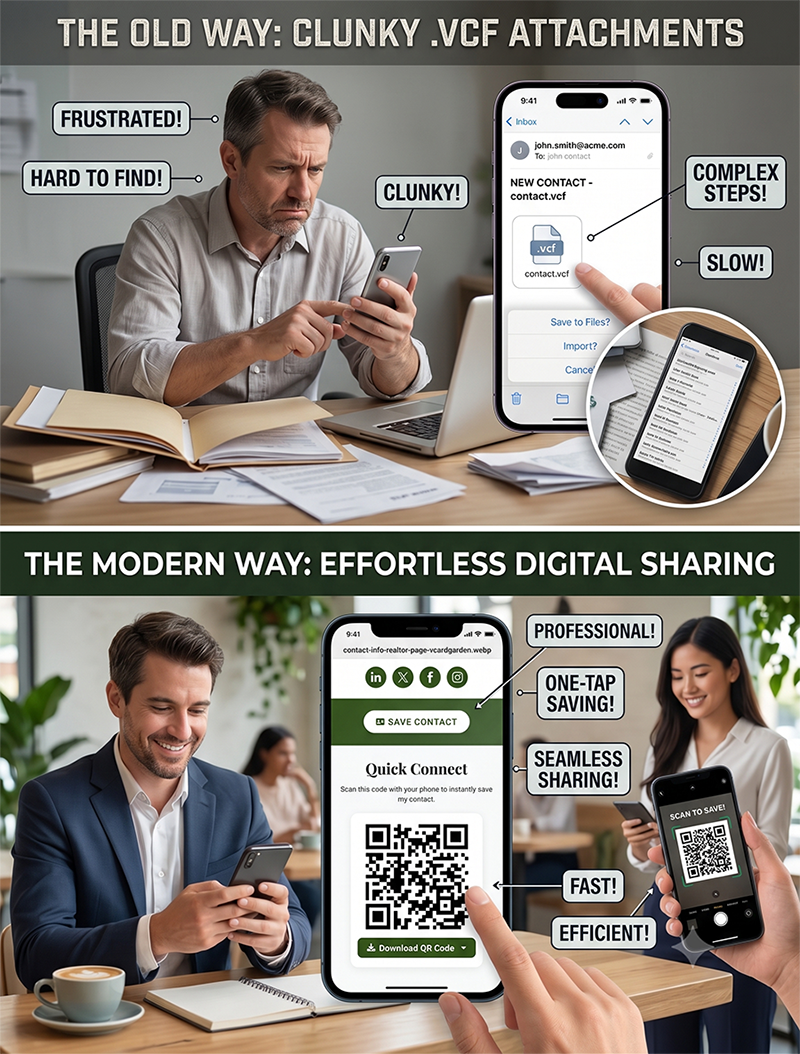
The Easier Way to Share Contacts
Dealing with .vcf file attachments works, but it's a clunky process from a different era. The modern approach is a shareable link or QR code that opens a contact page in the browser — the recipient taps "Save Contact" and the vCard downloads with all the details and photos intact, no file management required.
Want to make it effortless for people to save your info? Create your free digital business card with vCard Garden. Share a link or QR code, and people save your contact in one tap — on any device, every time.
Frequently Asked Questions
Is a .vcf file safe to open?
Yes. A .vcf file is just plain text containing contact information — names, phone numbers, emails, and addresses. It cannot contain viruses, malware, or executable code. Opening a .vcf file on your phone is no different from receiving a contact card through AirDrop or a text message.
Can I open a .vcf file on my computer?
Yes. On Mac, double-click the file and it opens in the Contacts app. On Windows, double-click it and it opens in Windows Contacts or Outlook. You can also open a .vcf file in any text editor to see the raw contact data — it's human-readable plain text.
How do I edit a .vcf file?
The easiest way is to import it to your Contacts app first, edit the contact there, then share or export it again. If you need to edit the raw file, you can open it in any text editor (Notepad, TextEdit) and modify the fields directly — but be careful with the formatting.
Can I import multiple contacts from one .vcf file?
Yes. A single .vcf file can contain multiple contacts. When you import it, your phone creates a separate contact entry for each person in the file. This is common when exporting contacts from email clients or CRM systems.
Why does my .vcf file open as text instead of a contact?
This usually happens when your phone doesn't recognize the file extension. Rename the file to make sure it ends in exactly .vcf (not .vcf.txt or .vcard), then try opening it again. On Android, you may need to use the Google Contacts manual import method instead of tapping the file directly.